
Most common Printer Issues and troubleshooting tips
Printer Issues Slowing Your Workflow Down? We have all been there! You’re rushing around the office trying to print an important document, and suddenly, your printer just won’t cooperate. Maybe it’s not connecting, or maybe you have a dreaded paper jam! Before you resort to office rage or start printer shopping, let us ease the pain with some quick troubleshooting tips to get you back on track.
Starting with the Basics:
Before we delve into specific issues, we wanted to share general troubleshooting tips that will immediately solve several printer problems:
- Unplug and restart your printer, waiting 30 seconds before plugging it back in.
- Check your cables or wireless connection to ensure the printer is connected correctly.
- Uninstall and reinstall your printer.
- Install the latest driver for your printer.
- Clear your printer spooler (visit the Microsoft website for details on how to do this).
- Make sure the printer status is online.
If your issues persist, it’s time to troubleshoot specific problems.
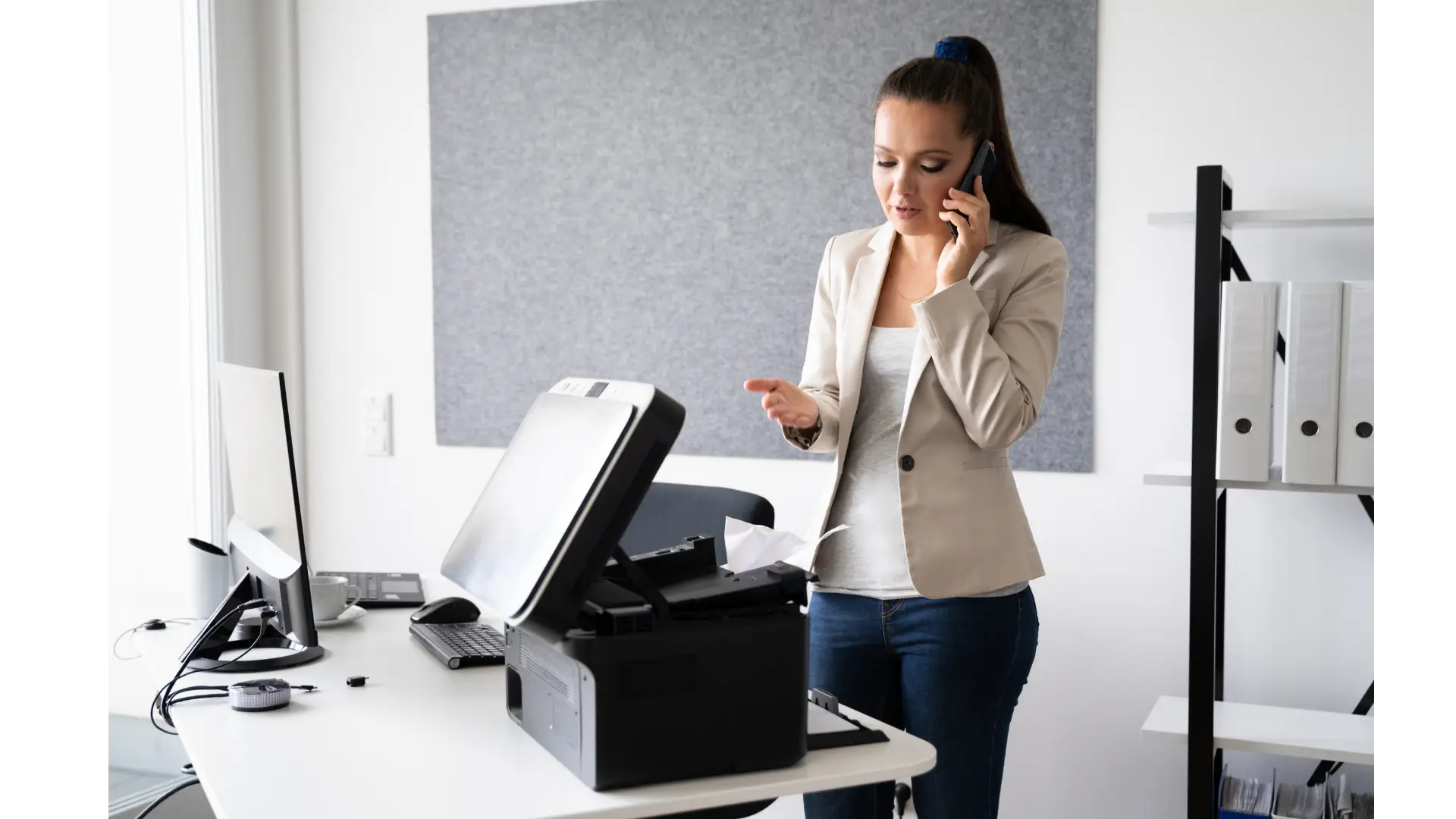
Having Trouble Installing or Adding a New Printer?
If your printer isn’t recognised by your computer, don’t panic. Here’s what you can do:
- Head to Settings > Printers & Scanners.
- Select Add a printer or scanner.
- Wait a few minutes for the full list of printers to appear.
- Choose the desired printer and click Add Device.
Is Your Printer Stuck in a Job Queue? Here’s How to Clear It:
A jammed printer queue can put everything on hold. Here’s how to fix it:
- Go to Start > Settings > Bluetooth & Devices > Printers & Scanners.
- Select your printer and open the print queue.
- Click the … (ellipsis) button and select Cancel All if there are pending jobs.
- Try printing again!
Printer Stopped Due to a Paper Jam?
If your printer likes to eat office paper, here’s how to fix it:
- Turn off the printer to prevent damage.
- Open the printer’s access panel and carefully remove any jammed paper, ensuring no small pieces are left behind.
- Reload the paper tray, but avoid overfilling it to prevent another jam.
- Turn the printer back on and restart it.
Can’t Print From Specific Applications?
If your printer works everywhere except in Word, Excel, or another app, here’s how to check:
- Ensure the app is up to date.
- Try exporting the document to PDF and printing from another program.
- Restart both the printer and the app you’re using.
- Check app-specific printer settings (e.g., margin size, paper size) to ensure they’re compatible with your printer.
- Reinstall the application.
Is Your Printer Showing as Offline Even Though It’s Powered On?
If your printer is on but still says “offline,” don’t stress. Try this:
- Check your printer queue (see the section on stuck print jobs).
- Ensure your printer and computer are connected to the same network.
- If they are, turn off your printer, unplug it for a minute, and then turn it back on.
- Reconnect your computer to the printer and try printing again.
Final Thoughts
Printers can be frustrating to deal with, but in many cases, a few quick troubleshooting steps are all you need to get it back on track. If you are dealing with stubborn printer issues that won’t go away even after trying basic troubleshooting steps, it may be time to reach out to an IT support company (Like Liberate IT!) Our team is always available to support your business with any IT-related issues, no matter how big or small!